Article Type: How-To Guide
Applies To: Administrators and Practitioners with booking management permissions
Want to control how and when clients can book appointments? This guide explains the two booking methods available and how to manage service availability for each.
The Mynd platform offers two ways for clients to book appointments:
Client Portal - Where existing clients log in to book appointments
Public Booking Page - Your public-facing booking link for new and existing clients
You have full control over what services are available through each method and when they can be booked.
Accessible only to existing clients who log into their account
Shows services based on their relationship with your practice
Controlled through shift settings and service configurations
Accessible to anyone with your booking link
Can be configured to show different services than the client portal
Controlled through both shift settings and service-level visibility settings
Shifts are time blocks in your calendar that determine when and what services can be booked.
Refer to Creating Shifts for how to create shifts. Here is a quick breakdown:
Navigate to Your Calendar: From the main menu, click on Schedule.
Create a New Shift: Click on Shift Mode and then drag to select a time block on your calendar.
Set the Time Frame: Define the start and end times for when appointments can be booked.
Select Available Services: Choose which services clients can book during this shift.
You can select multiple services for the same time block
Different shifts can offer different service combinations
Choose Booking Access: Determine who can book during this shift:
Client Portal Only: Only existing clients who log in can book
Public Booking Page: Available to anyone with your booking link
Both: Available through both booking methods
Save Your Shift: Click Save to make the shift active.
Important: Even if a service is enabled at the organization level, it will only be bookable during times when you have shifts that include that service.
By default, every service offered within your practice automatically appears on your public booking page, regardless of current availability. Clients can select any service, even if no time slots are currently available.
Access Service Settings: Navigate to Settings > Scheduling Settings
Review Service List: You'll see all services offered by your practice.
Toggle Public Visibility: For each service, you can:
Enable: Service appears on public booking page
Disable: Service is hidden from public booking page (but still available through client portal)
Save Changes: Click Save to apply your settings.
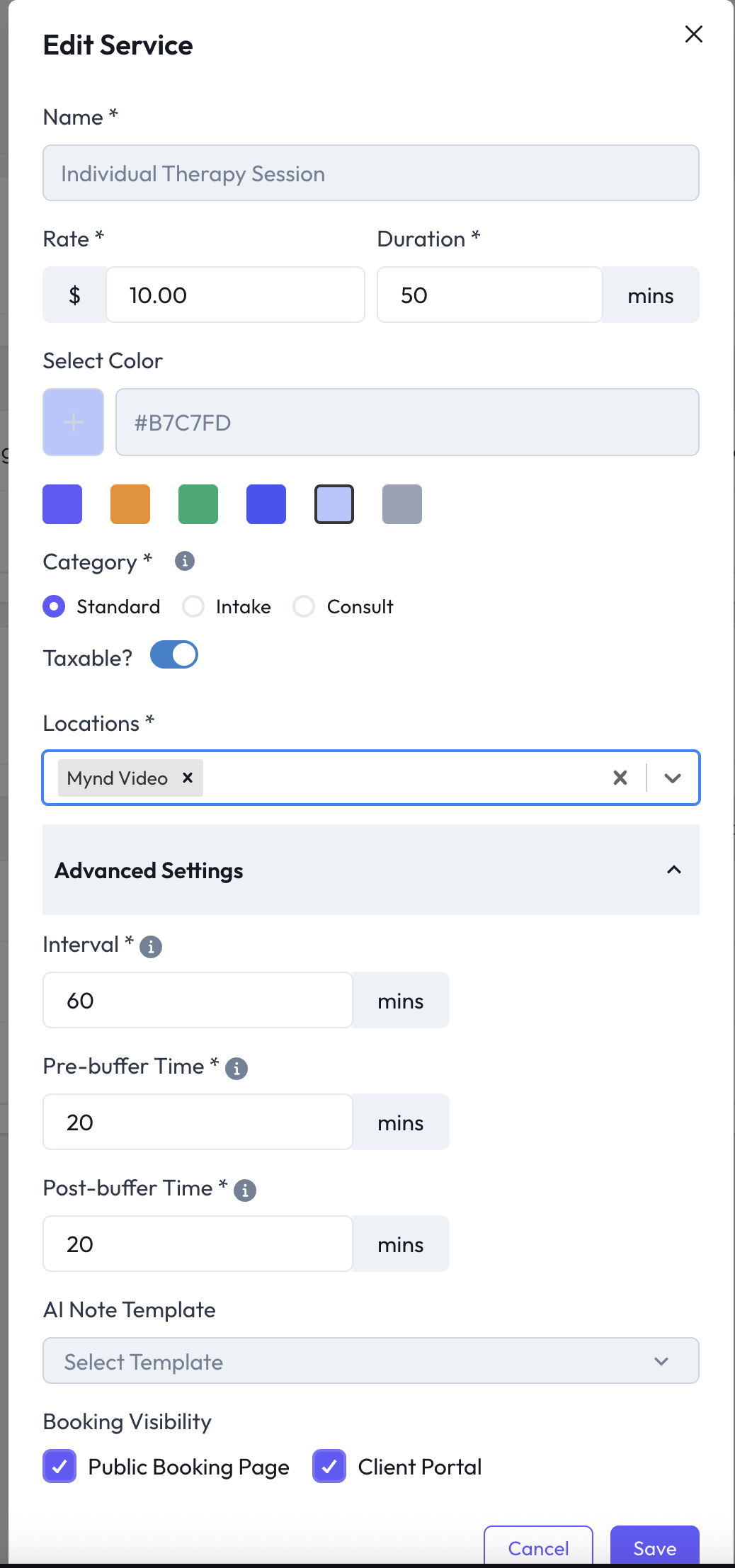
Each practitioner can override organization-level settings for their own booking page:
Access Individual Settings: Go to Settings > My Profile > Services.
Review Inherited Settings: You'll see which services are enabled at the organization level.
Override Settings: For each service, you can:
Follow Organization Setting: Use the default organization setting
Hide from My Public Page: Hide this service from your individual public booking link, even if enabled organization-wide
Show on My Public Page: Show this service on your booking page, even if disabled organization-wide (if you have permission)
Save Your Preferences: Click Save to apply your individual settings.

Create shifts that include the service
Set shift access to "Client Portal Only"
Ensure service is enabled in service settings
Disable the service in organization-level service settings
Or disable it in individual practitioner settings
Enable services at organization level
Have individual practitioners customize their service visibility
Create practitioner-specific shifts with their preferred services
Create shifts only during specific time periods
Include the special service in those shifts
Service won't be bookable outside of those designated times
Shifts control when services can be booked - no shift means no availability
Service settings control whether services appear on public booking pages
Two levels of control exist: organization-wide and individual practitioner
Client portal and public booking page can show different service options
Default behavior shows all services on public pages, even without availability
Issue: Service isn't showing up on public booking page
Solution: Check both organization-level and practitioner-level service settings to ensure it's enabled for public visibility.
Issue: Clients can't book a service that should be available
Solution: Verify that you have active shifts that include this service during the times clients are trying to book.
Issue: Service appears but shows "No availability"
Solution: Create shifts that include this service, or extend existing shifts to cover more time periods.
Support:
Still need help? Contact support@mynd.com or visit our Help Center.