Applies To: Practitioners
This guide explains how practitioners can schedule an appointment involving multiple clients (a group appointment) directly within the Mynd platform.
Prerequisites:
You must have permission to schedule appointments.
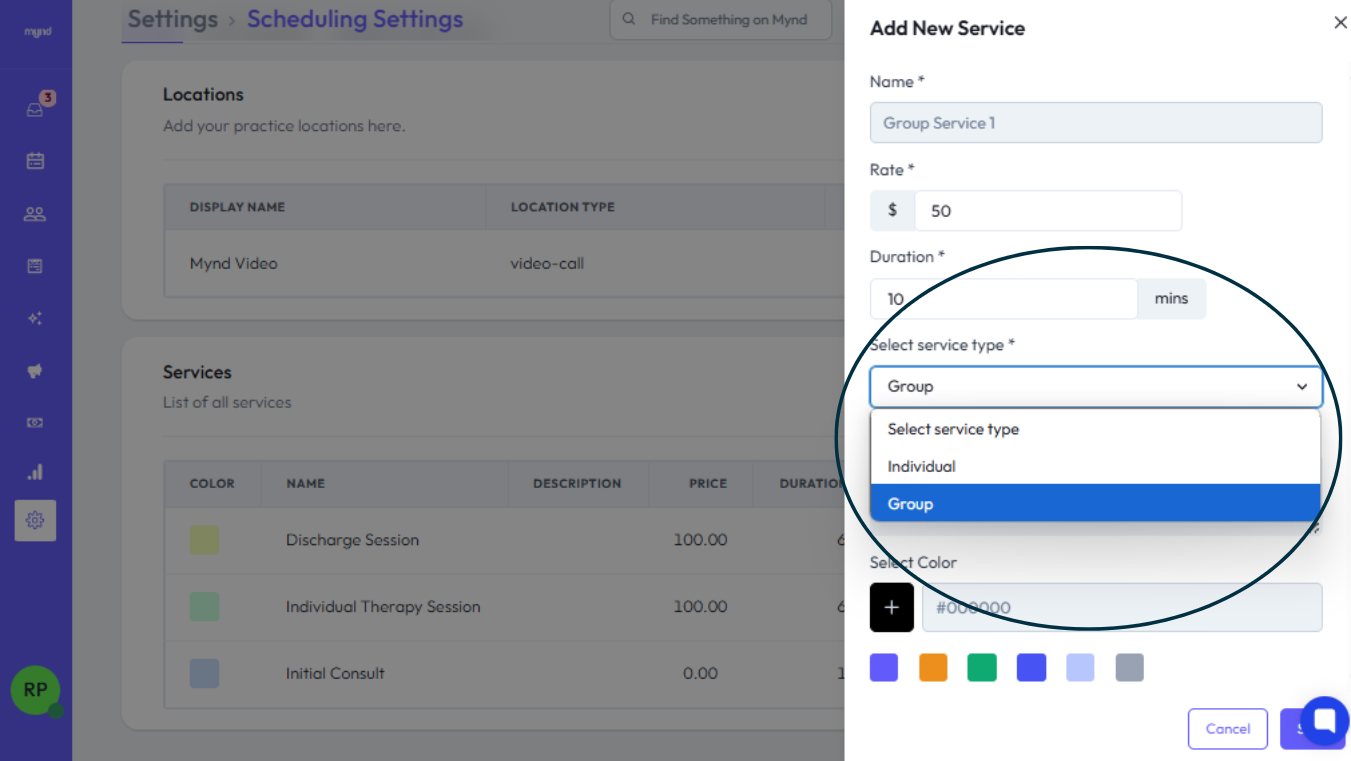
A Service Type suitable for group sessions (e.g., "Couples Therapy", "Family Session") must already be created and configured in the system settings as allowing group bookings.
Client profiles for all participants must exist in the system.
Steps:
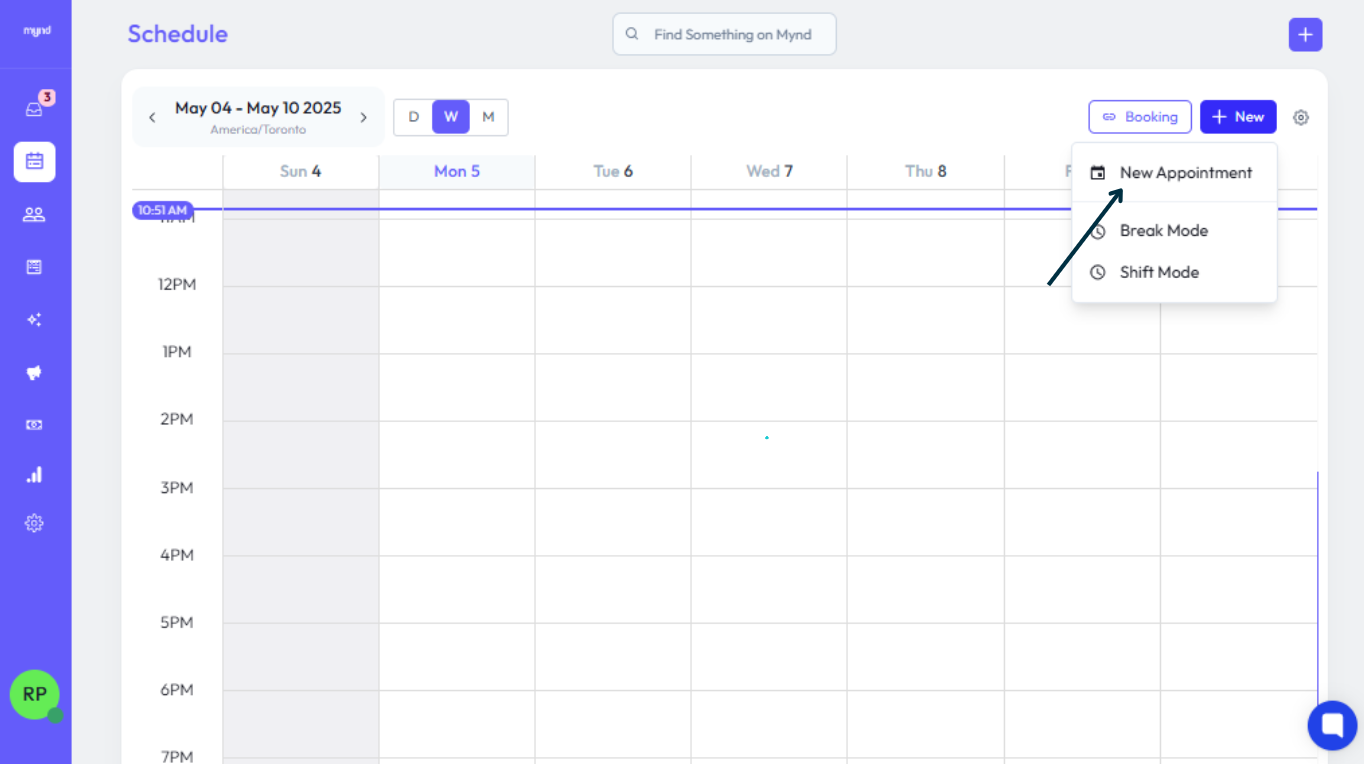
Start a New Appointment: Initiate the process to create a new appointment (e.g., by clicking a New Appointment button on the calendar or a client's profile).
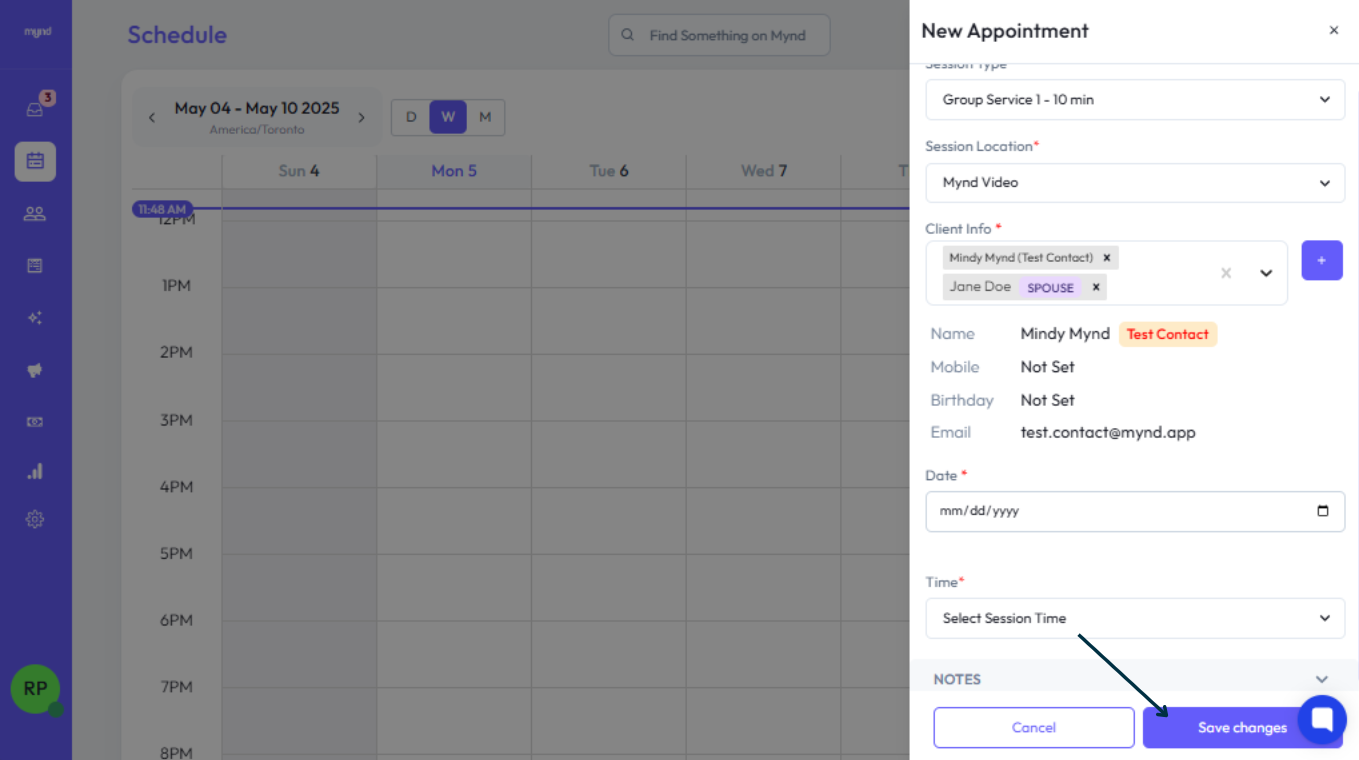
Select a Group Service Type: When choosing the service for the appointment, make sure to select one that has been configured as a Group type. If you select a non-group service, you won't be able to add multiple clients.
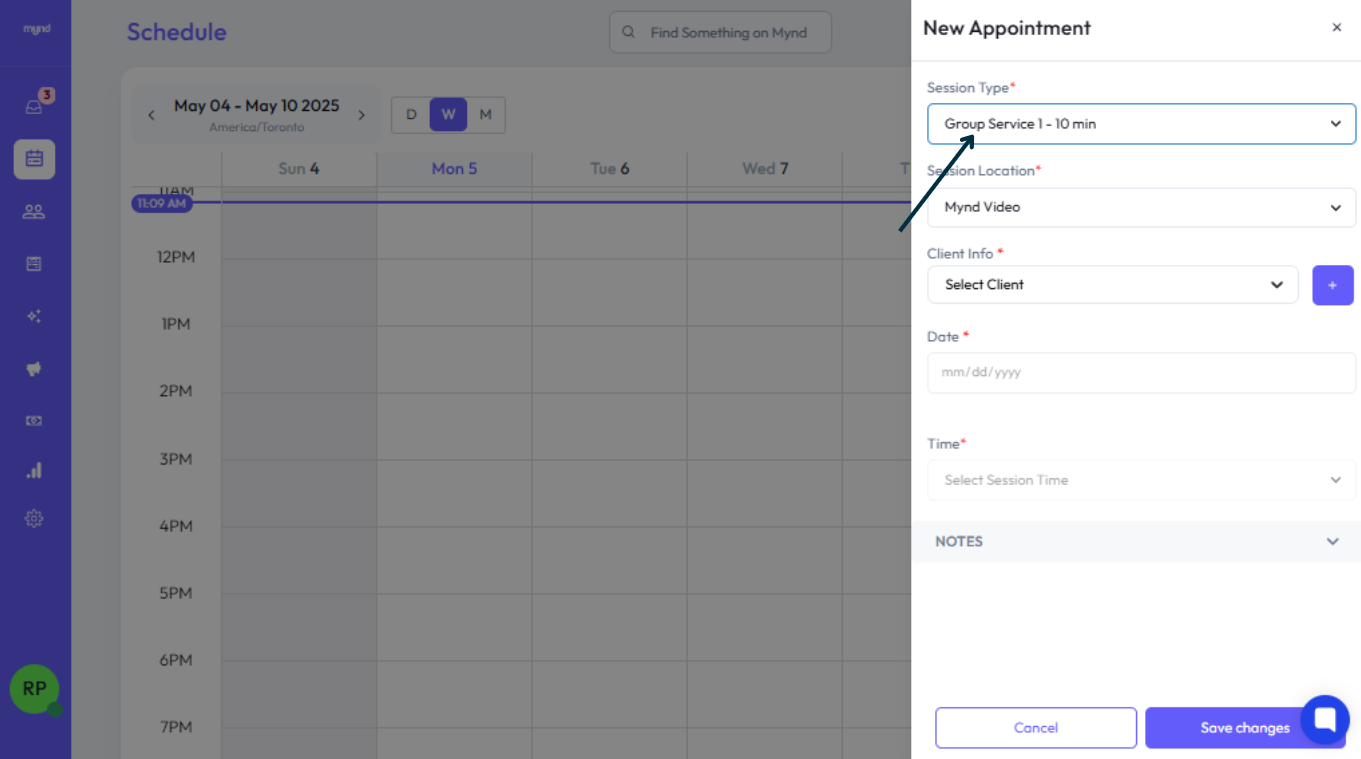
Add the First Client: Select the first client who will be attending the session.
Add Subsequent Clients:
After adding the first client, an option to add more participants will become available.
Click to add the next client.
Relationship Suggestions: When you search for or select subsequent clients, if the first client you chose has defined relationships (like Spouse, Child), those related clients will appear first in the suggestion list, making them easy to select (e.g., "Jane Doe - Spouse").
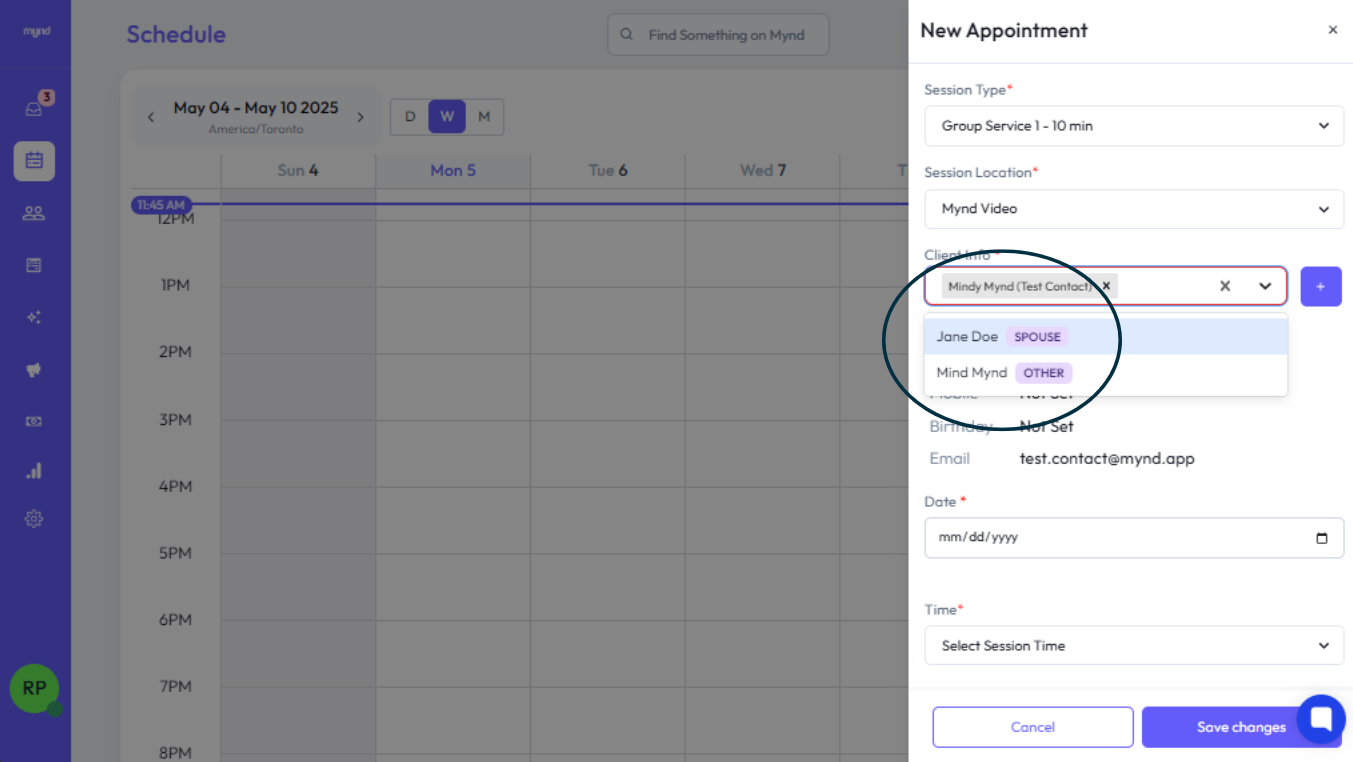
You can always search for and add any other client, even if they don't have a predefined relationship.
Repeat this step to add all clients participating in the group session.
Confirm Appointment Details:
Select the desired Date and Time for the appointment.
Verify all details are correct: Participants, Service, Date, Time, Duration, Location [Placeholder: Add other relevant fields like Room, etc.].
Add any internal notes if needed.
Save the Appointment: Click the Save button.
Notifications:
Once the group appointment is saved, all clients included in the session will typically receive automated notifications confirming the booking.
Standard appointment reminders will also be sent to all participants according to the practice's configured schedule.
Support:
Need help scheduling? Contact support@mynd.com or consult your practice administrator.