Applies To: Practitioners
This guide explains how practitioners can configure notification settings and data access permissions for specific client relationships. This allows controlled sharing of information (like appointments or invoices) between related clients, such as a parent managing a child's care.
Prerequisites:
You must have permission to manage client relationships and configure settings.
Relationships must be defined between the relevant clients
Key Concepts:
Notification Settings: Control which automatic notifications (e.g., appointment reminders, new invoices) are sent to a related client on behalf of another.
Data Access Permissions: Control what data (e.g., upcoming appointments, invoice details) a related client can view or manage in their Client Portal on behalf of another.
Steps:
Navigate to Relationships Tab: Go to the client profile of one of the individuals in the relationship (e.g., Client A, the parent).
Locate Relationship: Find the specific relationship entry in the list (e.g., the entry for Client B, the child).
Find Settings Buttons: Associated with that relationship entry, look for buttons/icons like Notification Settings and Data Access.
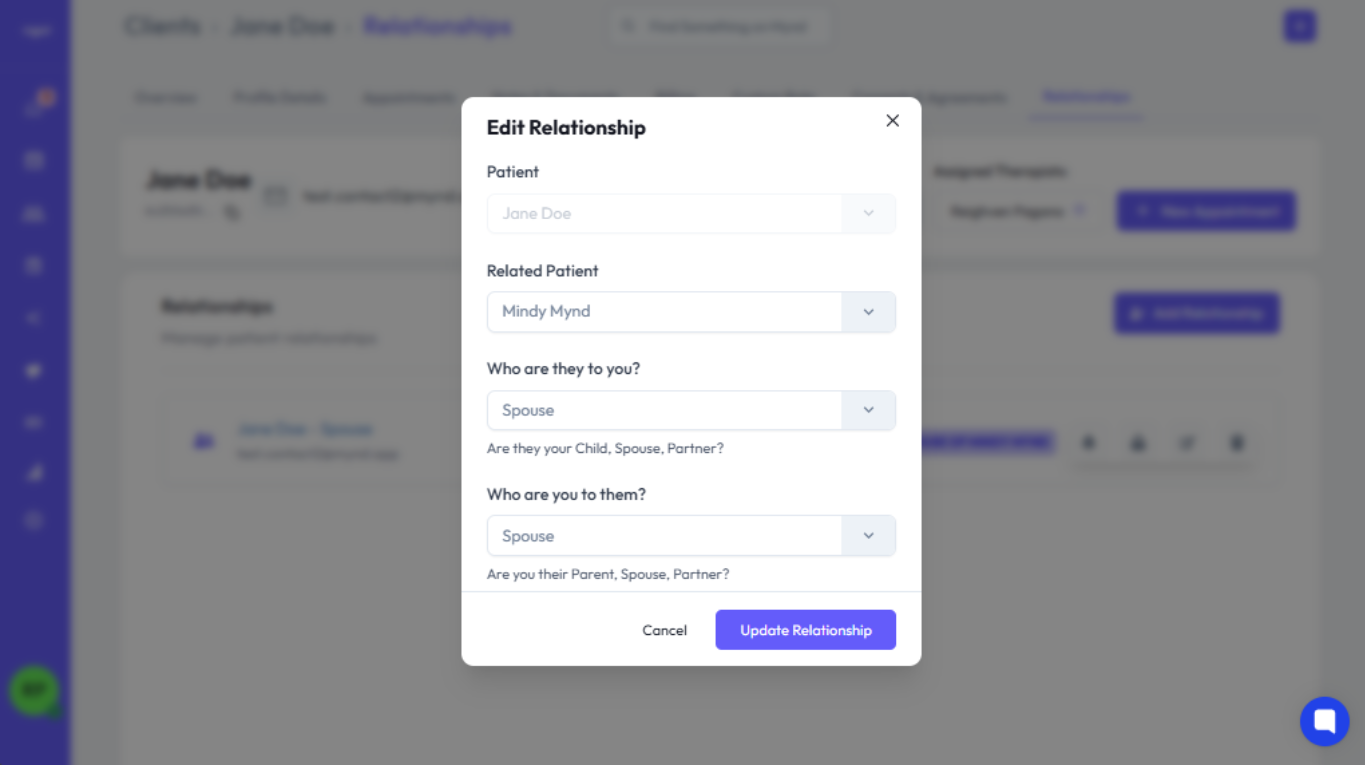
Open Notification Settings: Click the Notification Settings button for the desired relationship.
Review Options: A modal or form will appear listing available notification types (e.g., Appointment Reminders, Invoice Notifications).
Toggle On/Off: Use the checkboxes or toggles to enable or disable specific notifications for the related client (e.g., enable appointment reminders for the parent regarding the child's sessions).
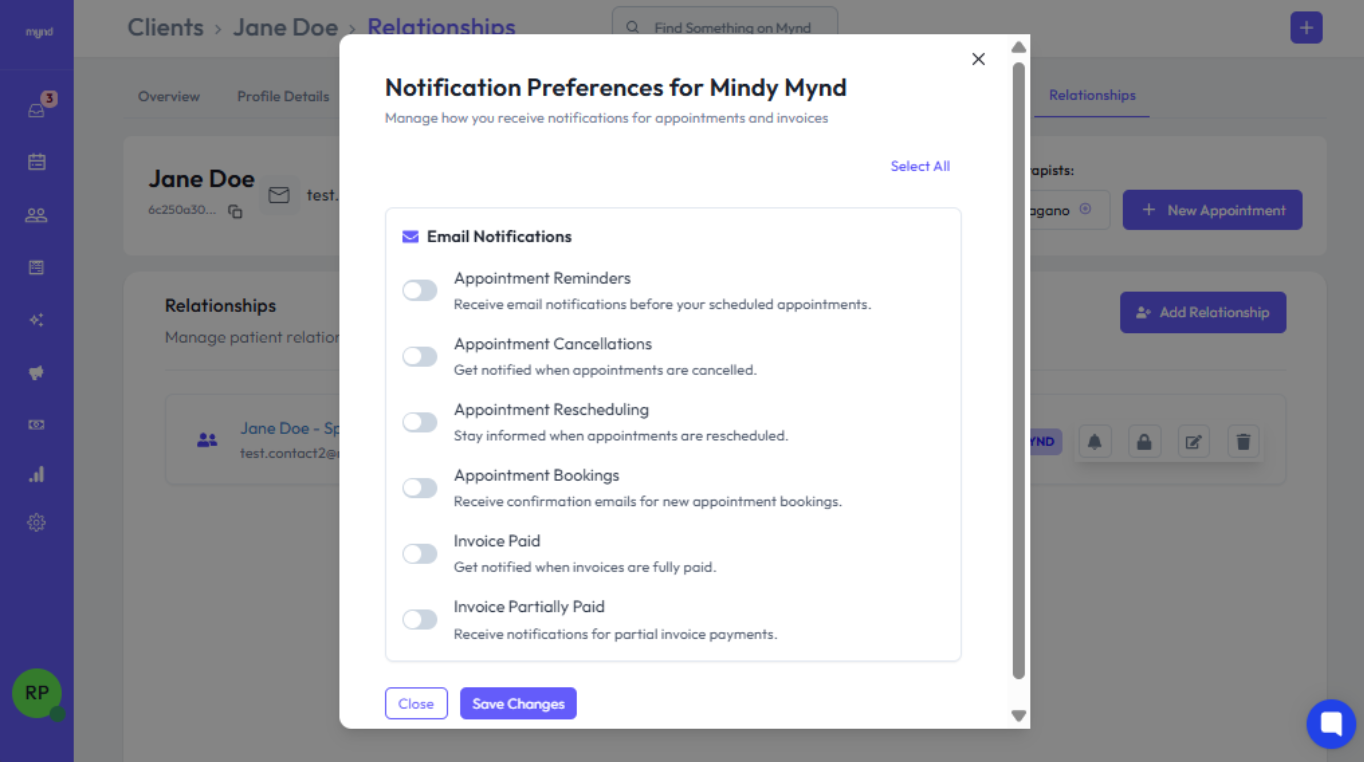
Save Changes: Click Save.
Open Data Access Settings: Click the Data Access button for the desired relationship.
Review Permissions: A modal or form lists data types the related client could potentially access (e.g., View Appointments, View/Pay Invoices, View Basic Profile Info).
Grant/Revoke Access: Use checkboxes or toggles to grant or revoke access to specific data types (e.g., grant the parent permission to View/Pay Invoices for the child).
Note: Granting data access often implies certain notifications will also be sent. Be mindful of privacy implications.
Important Considerations:
Privacy: Always consider the privacy implications before enabling notifications or granting data access to related parties. Ensure you have the necessary consent where applicable.
Clarity: Be prepared to explain to clients what information is being shared and why, based on the configurations you set.
Support:
For questions about configuring permissions, contact support@mynd.com.