Article Type: How-To Guide
Applies To: Owners, Admins
Keep your practice running smoothly by managing who has access to your Mynd account. This guide covers how to add, modify, and remove team members and understand their different roles and license types.
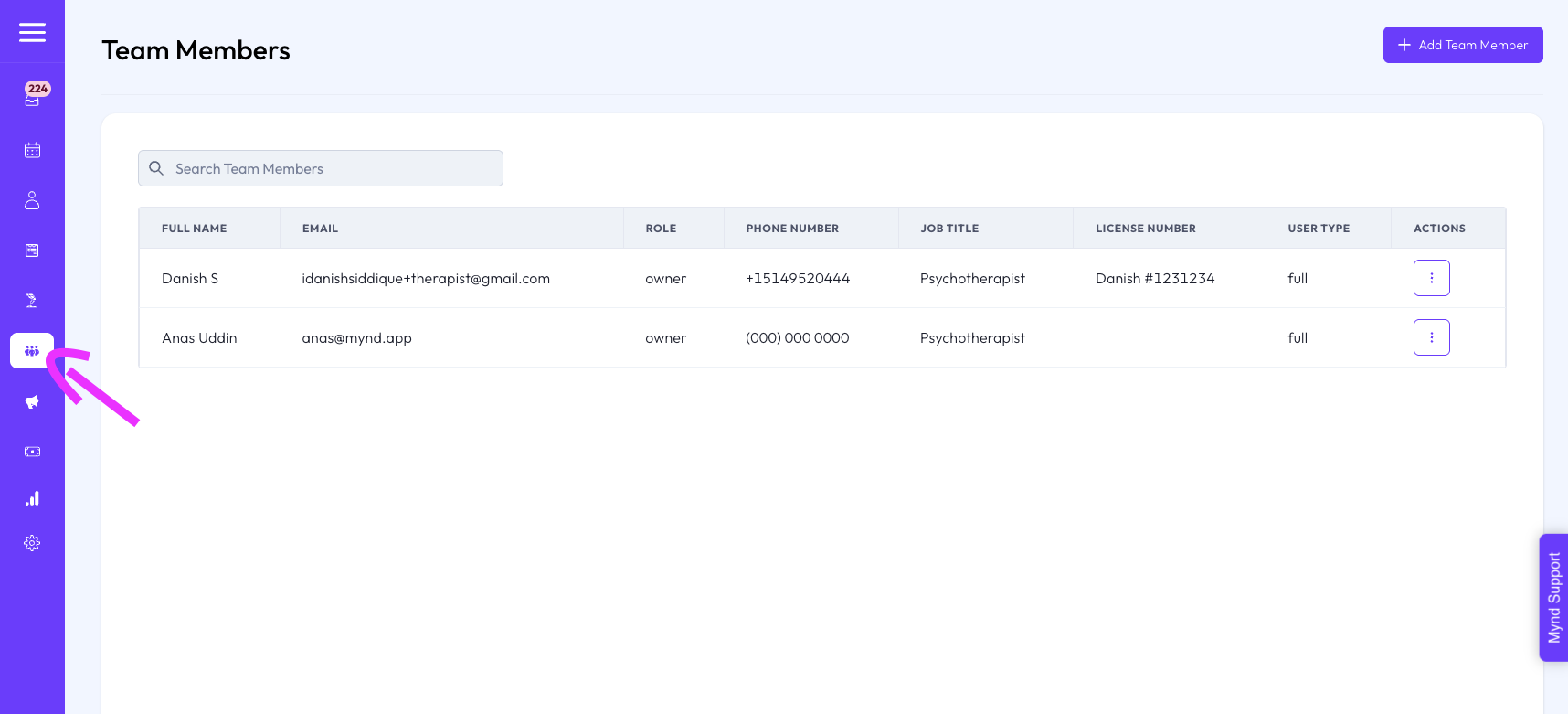
You can manage your team members in two ways:
Via Practice Settings: Navigate to Practice Settings > Team Members.
Via Dedicated Menu: Click on the Team Members option in the main navigation menu.
Invite colleagues to collaborate within your Mynd practice.
Steps:
Navigate to the Team Member management section (using one of the methods above).
Click the Add Team Member or Invite Team Member button.
Enter the team member's First Name, Last Name, and Email Address.
Select the User Role from the dropdown menu. See Understanding User Roles below for details.
Choose License Type (If applicable):
If you select Owner or Therapist (paid roles), you'll need to choose a license type:
Full License: Grants full platform access with unlimited sessions. This incurs a license fee.
Half License: Grants platform access limited to 20 sessions per billing cycle (or relevant period). This incurs a reduced license fee.
Admin and Supervisor roles are free and do not require a license type selection.
Click Save.
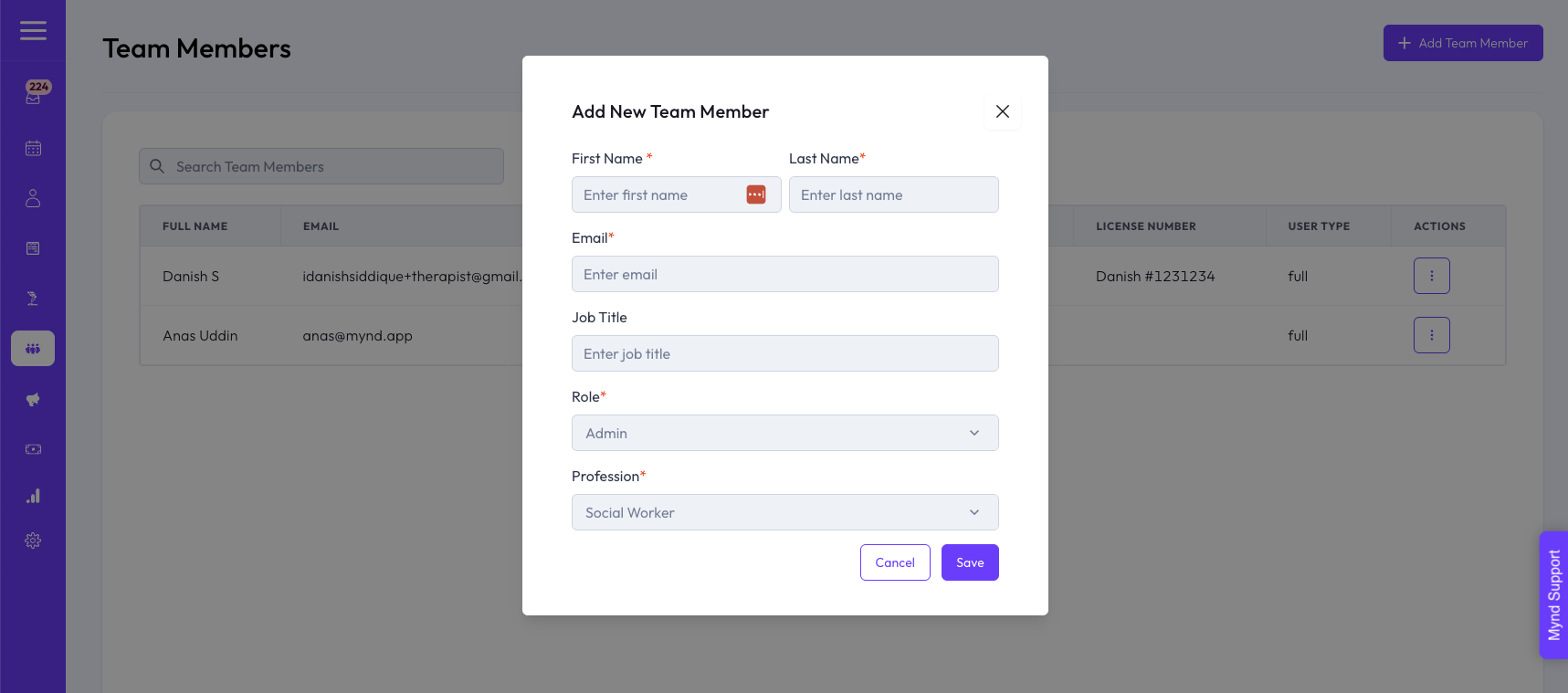
The team member will receive an email invitation to join your practice.
You can update a team member's role or license type after they've been added.
Steps:
Navigate to the Team Member management section.
Find the team member you wish to modify in the list.
Click the Edit icon (pencil) in the action menu associated with their name.
Adjust the User Role or License Type (if applicable) as needed.
Note: Changing to or between paid roles (Owner/Therapist) or changing their license type (Full/Half) may have billing implications.
Click Save.
When a team member leaves your practice, you can remove their access.
Steps:
Navigate to the Team Member management section.
Find the team member you wish to remove.
Click the Deactivate button associated with their name.
Confirm the deactivation. This will deactivate the user, but will not delete them from the system.
Important: Removing a user with a paid license (Owner or Therapist) will free up that license slot for future use and may adjust your next bill accordingly.
Each role has specific permissions and access levels:
Owner: (Paid Role - Full/Half License)
Full administrative access, including billing and practice settings.
Can manage all other users.
Typically the primary account holder.
Admin: (Free Role)
Can manage users (add/remove/modify), manage practice settings (excluding billing).
Has access to clinical patient information but not clinical notes unless also assigned a clinical role (like Therapist) separately.
Therapist: (Paid Role - Full/Half License)
Access to client records, scheduling, notes, and other clinical features.
Limited access to practice-wide settings.
Supervisor: (Free Role)
Can oversee assigned Therapists' work (e.g., review notes, manage caseloads).
Permissions are typically configured based on supervisory relationships.
Easily manage your team's access through Practice Settings or the Team Members menu.
Understand the differences between Owner, Admin, Therapist, and Supervisor roles.
Be mindful of paid licenses (Full/Half) for Owners and Therapists and the associated session limits for Half licenses.
Removing users frees up paid license slots.
Support:
Still have questions about managing your team? Contact support@mynd.com.