Key Points:
Testing and Previewing Templates with Recorded Sessions
Selecting a Client and Session Recording: After creating a template, select a client and a previously recorded session to test the template.
Generating a Preview: Use the Generate Preview option to see how the template applies to a specific session. This helps you ensure that the template is capturing all relevant details.
Making Adjustments: If any sections are missing or need refinement, edit the template and test again until it generates the desired output.
Using Placeholders and Conditional Sections
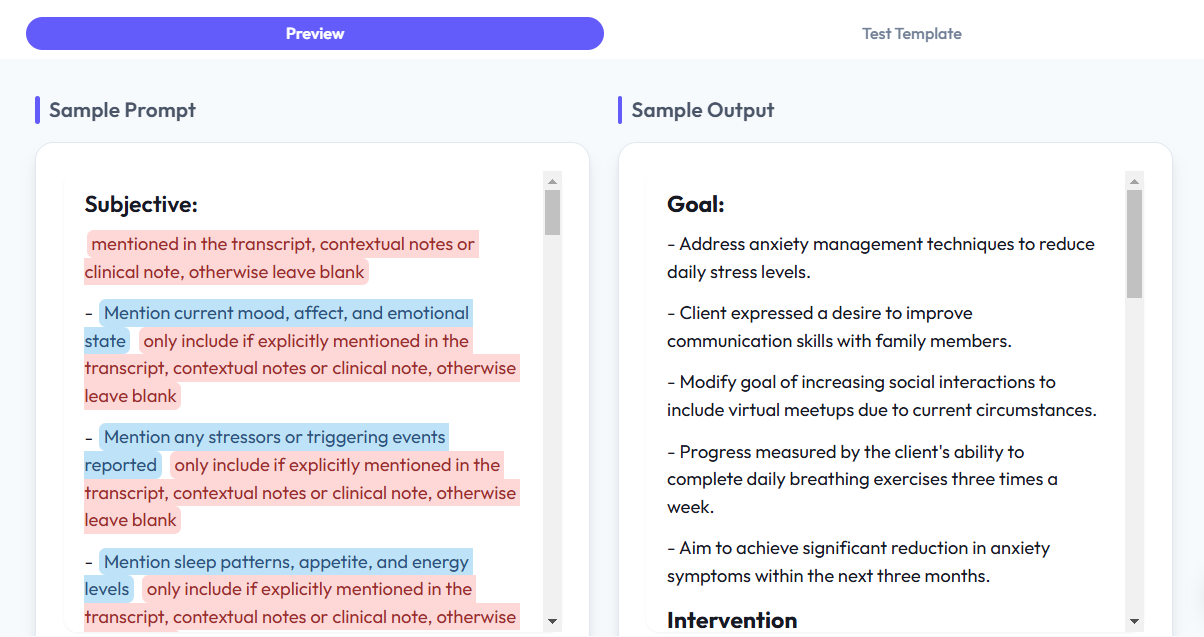
Understanding Placeholders: Placeholders are customizable fields within the template that pull information from the session. For instance, a placeholder can automatically insert the client’s name, session date, or even treatment progress.
Using Conditional Instructions: For example, if a session discusses new symptoms, add a conditional instruction like “[Include new symptoms only if mentioned].” The AI will insert relevant details when applicable, keeping the note accurate and concise.
Managing Template Access and Sharing
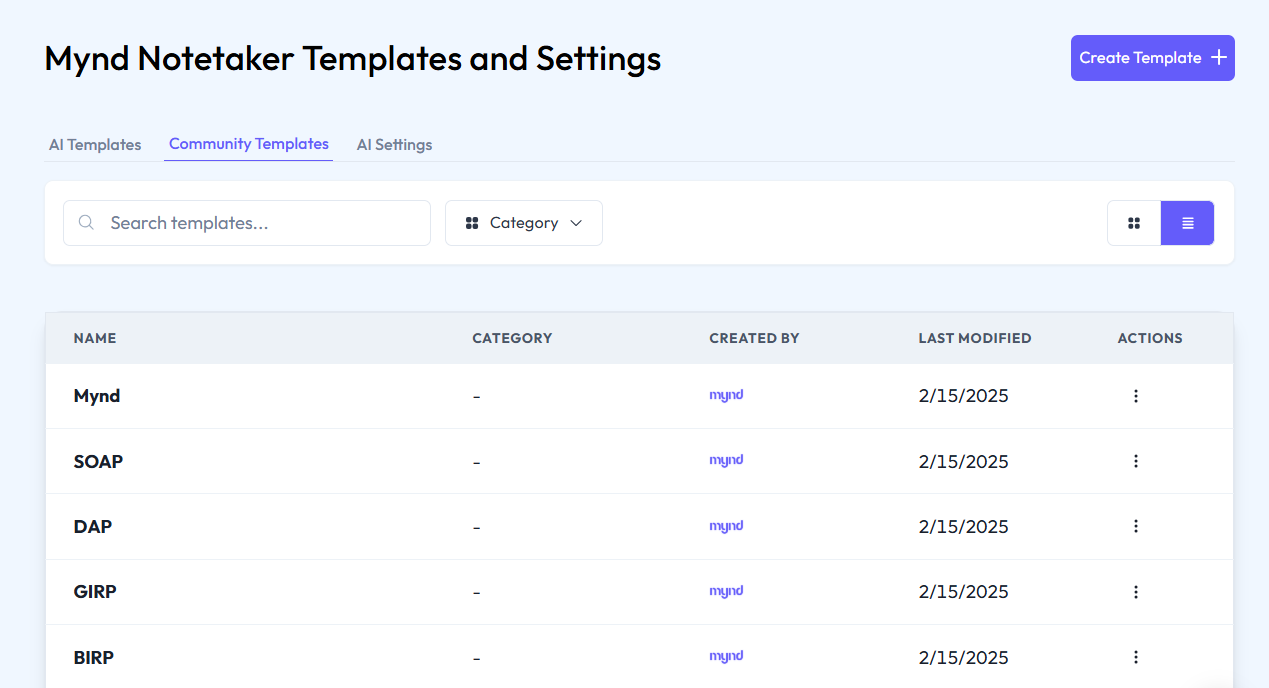
Template Access Settings: After creating a template, you can determine who can access it. This can range from personal use to sharing it with your organization or with specific team members.
Sharing Templates with Others: To make a template available to others, select the option to share it globally or with specific users within your team. This ensures that everyone in your organization uses consistent templates.
Assigning Templates to Session Types and Clients
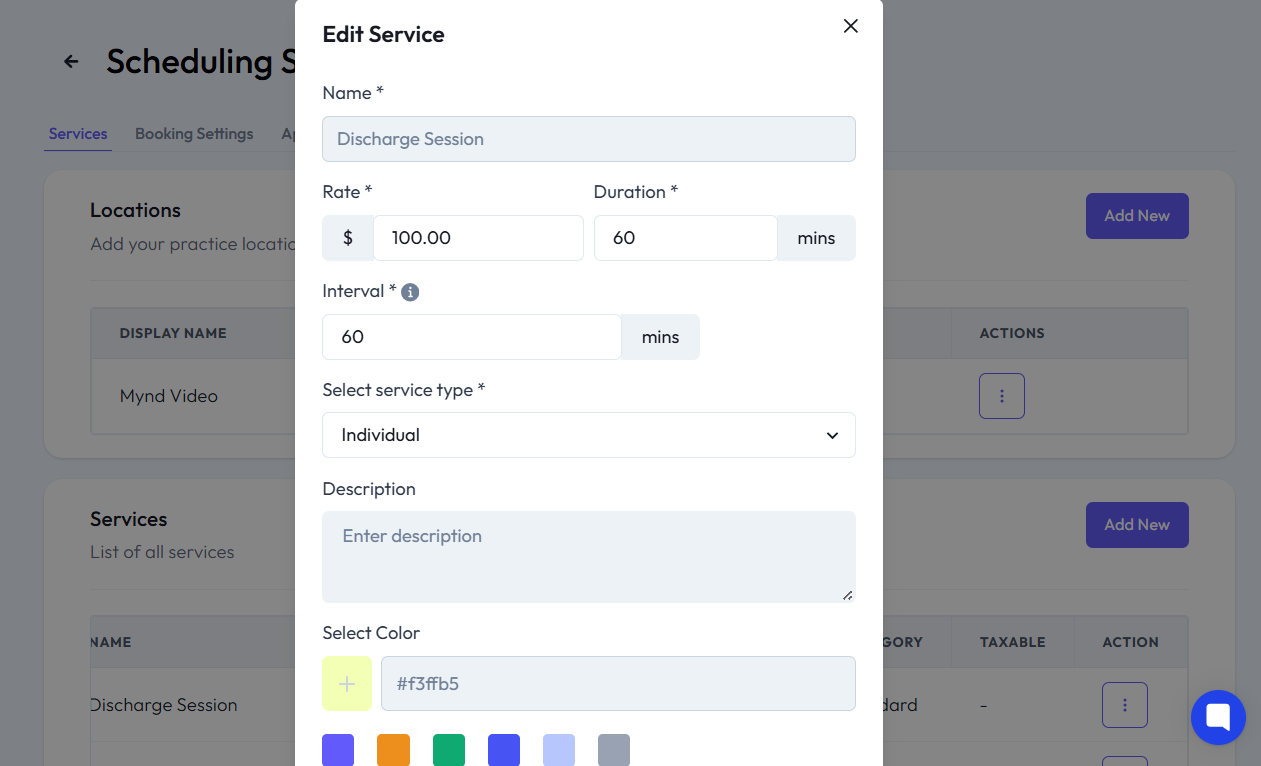
Session-Specific Templates: Each session type can have a dedicated template. For example, you might want to use one template for group sessions and another for individual therapy sessions. You can assign these templates within the scheduling service or at the client level.
Template Assignment at the Client Level: For clients who require a specific format, like trauma therapy or CBT, assign a template that matches their treatment needs. This can be done directly from the client’s profile.
Finalizing and Exporting Notes
Exporting Session Notes: Once a session note is generated, you can export it in multiple formats (PDF, DOCX) for record-keeping, client sharing, or further documentation.
Review and Modify: If needed, you can modify any part of the note before finalizing and sharing. This allows for flexibility in documenting specific session details.