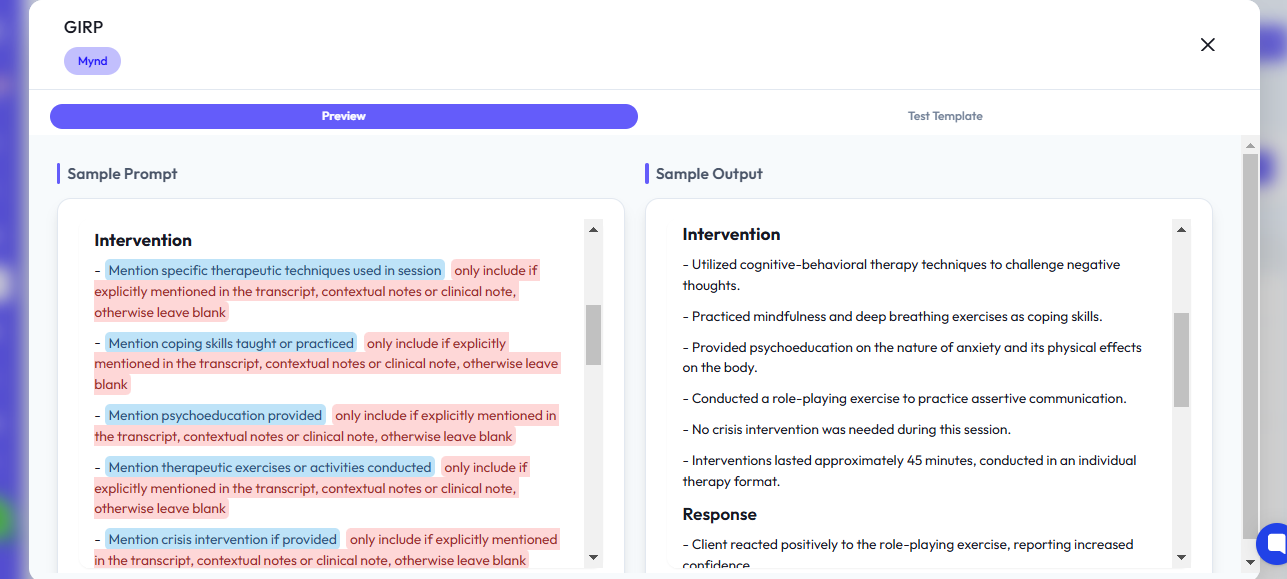
Key Points:
Creating a Custom Template
Step-by-Step Guide:
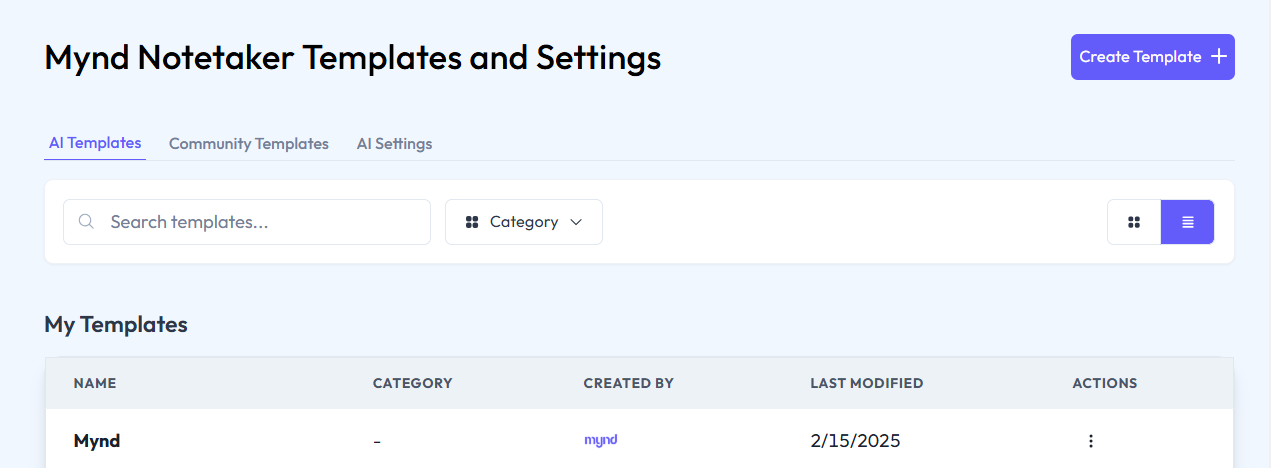
Navigate to the AI Templates page and select Create New Template.
Choose a starting point for your new template, either a blank template or by modifying an existing one (e.g., Mynd’s built-in template).
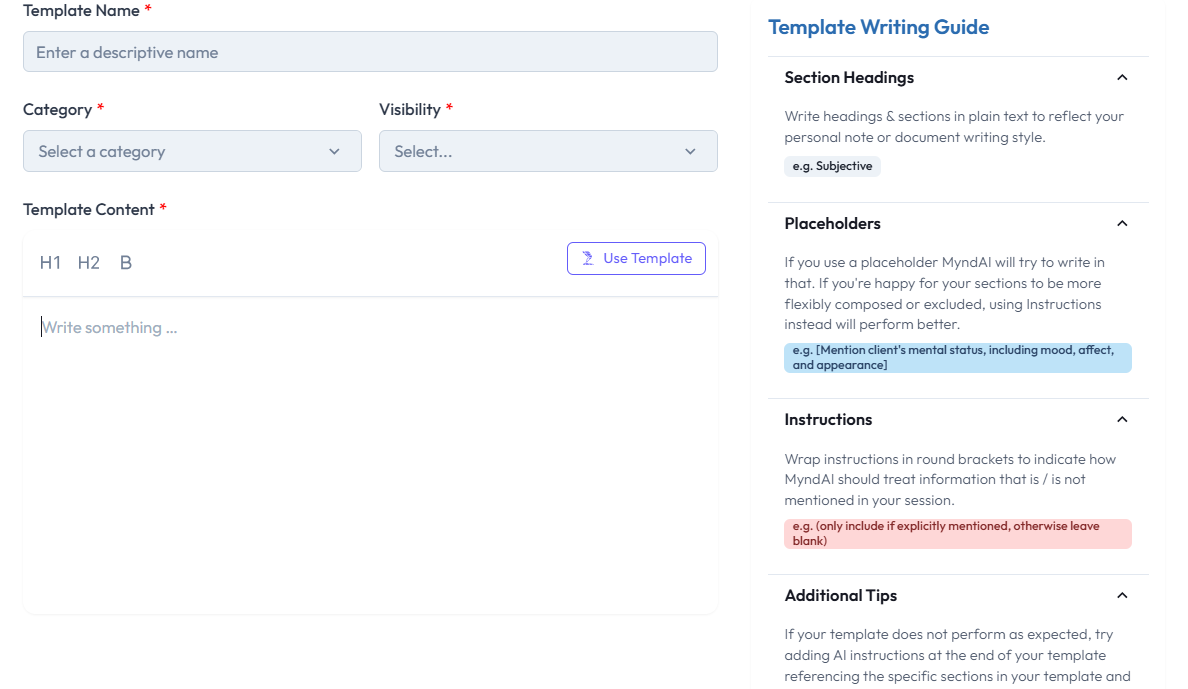
Name your template and provide a description to help identify its purpose (e.g., “Trauma Therapy Note Template”).
Customizing Template Sections
Adding Sections: You can add custom sections to your template, such as an additional client history or treatment goals. For example, a new section for Marital Status can be included if it's relevant to the session.
Using Placeholders: Use placeholders (indicated in blue within square brackets) to dynamically insert information such as client name, session date, and specific client concerns. These placeholders will automatically be filled in by the AI based on the session content.
Conditional Content in Templates
Conditional Logic: Templates can include conditional instructions. For instance, if a client’s marital status is mentioned during the session, the template will automatically add the corresponding information. If not mentioned, it will omit the section.
Example:
Add a note in brackets: “[Include marital status only if explicitly mentioned during the session].”
Assigning Templates to Session Types
Session-Specific Templates: You can assign specific templates to different session types such as individual, group, or couples therapy. This ensures that notes are structured appropriately based on the nature of the session.
Client-Level Template Assignment: You can also assign templates at the individual client level for consistency across sessions. For example, a trauma client might have a specific template that is different from a regular therapy session.